How to automate file downloads to your local computer
To automate the process of downloading files locally from a website or web application, you can utilize three steps, "Download file", "Download files" and "Download file from URL". These steps allow for easy file transfers without the need for programming.
To download files locally, you will need to run the Axiom.ai desktop application.
# How to download a file(s) locally
Assuming you have already added a "Go to page" step to your automation, use the step finder to add the "Download file" or "Download files" steps. Then configure the step as follows:
How
- Click "Select" and choose the file(s) you wish to download.
- Next, click "Click to select" to choose the destination folder for the download or set a specific path.
- Finally, insert a file name.
# How to download files from multiple pages
To download images from multiple web pages, you can use either of the aforementioned steps inserted inside a loop. The pages should use the same template, like the image listing pages. Additionally, you'll need a data source such as a Google Sheet with the URLs:
Design pattern: Download files loop
- 1 Read data from a Google Sheet
- 2 Loop through data
- 2.1 Go to page
- 2.2 Download file(s)
How
- Create a Google Sheet with your page URLs.
- Begin with a "Read data from a Google Sheet" step to retrieve the URLs.
- Add a "Loop through data" step.
- Inside the loop, insert a "Go to page" step. Click "Insert Data" choose the Google Sheet containing the URLs.
- Click "Add sub-step", and insert the "Download file/files" step inside the loop.
- Next, click "Click to select" to choose the destination folder for the download or set a specific path.
- Finally, insert a file name.
# How to download file from a URL
To download a file from a URL, use the "Download file from URL" step. Use the step finder to add the step. Then configure the step as follows:
How
- First, insert the URL from which you want to download.
- Next, click "Click to select" to choose the destination folder for the download or set a specific path.
- Finally, insert a file name.
# How to Download Files from Multiple URLs
To download files from multiple URLs, you can still use the "Download file from URL" step. Additionally, you'll need a data source such as a Google Sheet with the file URLs. Finally, add a "Loop through data' step:
Design pattern: Download flles from URL loop
- 1 Read data from a Google Sheet
- 2 Loop through data
- 2.1 Go to page
- 2.2 Download from a URL
How
- Create a Google Sheet with your image URLs.
- Begin with a "Read data from a Google Sheet" step to retrieve the URLs.
- Add a "Loop through data" step.
- Click "Add sub-step", and insert the "Download file from URL" step inside the loop.
- Enter the URL, click "Insert Data", and select the Google Sheet with the URLs.
- Then, click "Click to select" to choose the destination folder for the download or set a specific path.
- Lastly, insert a file name. Multiple files will be appended with a unique number.
# How to download a file locally using the "Download a file to Google Drive" step
Assuming you have already added a "Go to page" step to your automation, use the step finder to add the "Download a file to Google Drive" step. Then configure the step as follows:
How
- Click "Select" and choose the file you wish to download.
- Next, enter the URL of the folder in Google Drive to download to.
- Enter a name for the file to be downloaded.
- Toggle "Local folder" to on, tick the box and set a local folder path.
Please note setting only works running your automation on the desktop.
# Advanced Settings for File Download Steps
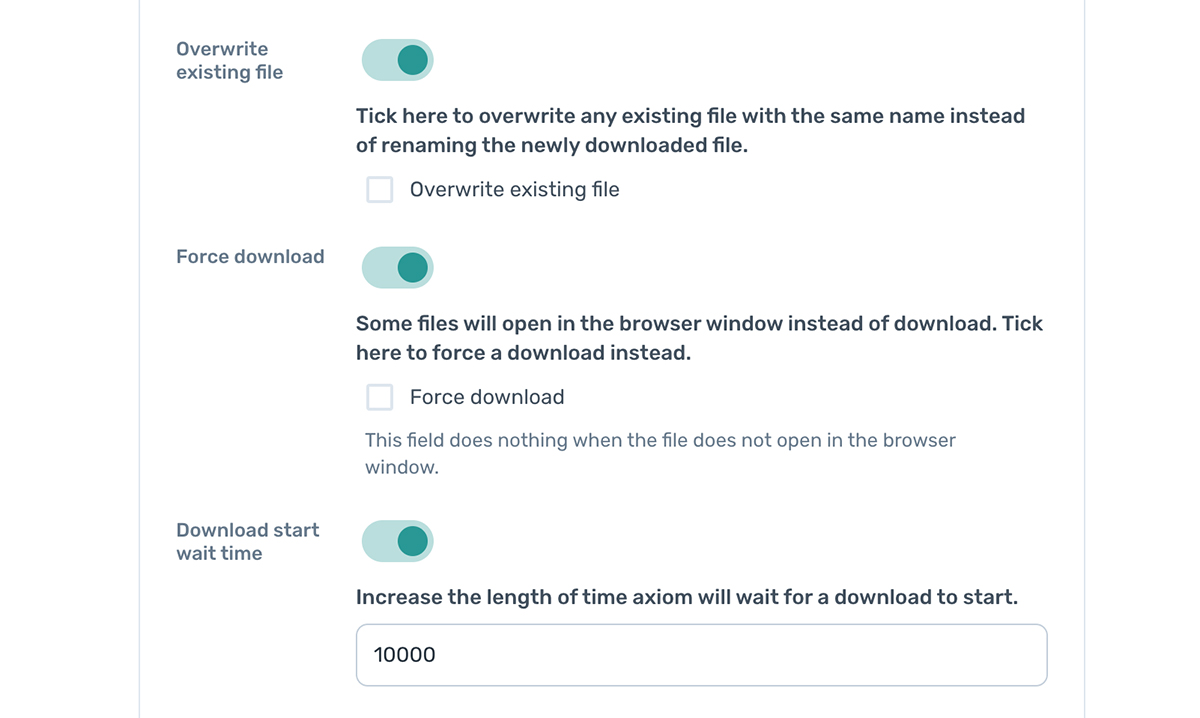
# Overwrite existing file
To overwrite any existing file with the same name instead of renaming the newly downloaded file, toggle the option on and tick the box to overwrite
# Force download
If some files open in the browser window instead of downloading, toggle the switch to "on" and tick to force download. If issues persist, contact support
# Download start wait time
Increase the length of time axiom will wait for a download to start by toggling the switch and setting a time in hundredths of a second
# Issues When Automating File Downloads
If the file does not download, please ensure the file path is correct and the correct write folder permissions are set.